Push-to-talk.
Hold your chosen Windows key or the on-screen button to speak. Release to stop.
YOUR COMMUNITY. ON THE AIR.
A free desktop radio companion that brings your people onto the same channel. Hold to talk, hear your team, and keep the conversation close to the game.
Windows 10+ · x64 · Free to download and use
 Handheld
Push-to-talk radio for your ER:LC server.
THE DESKTOP APP
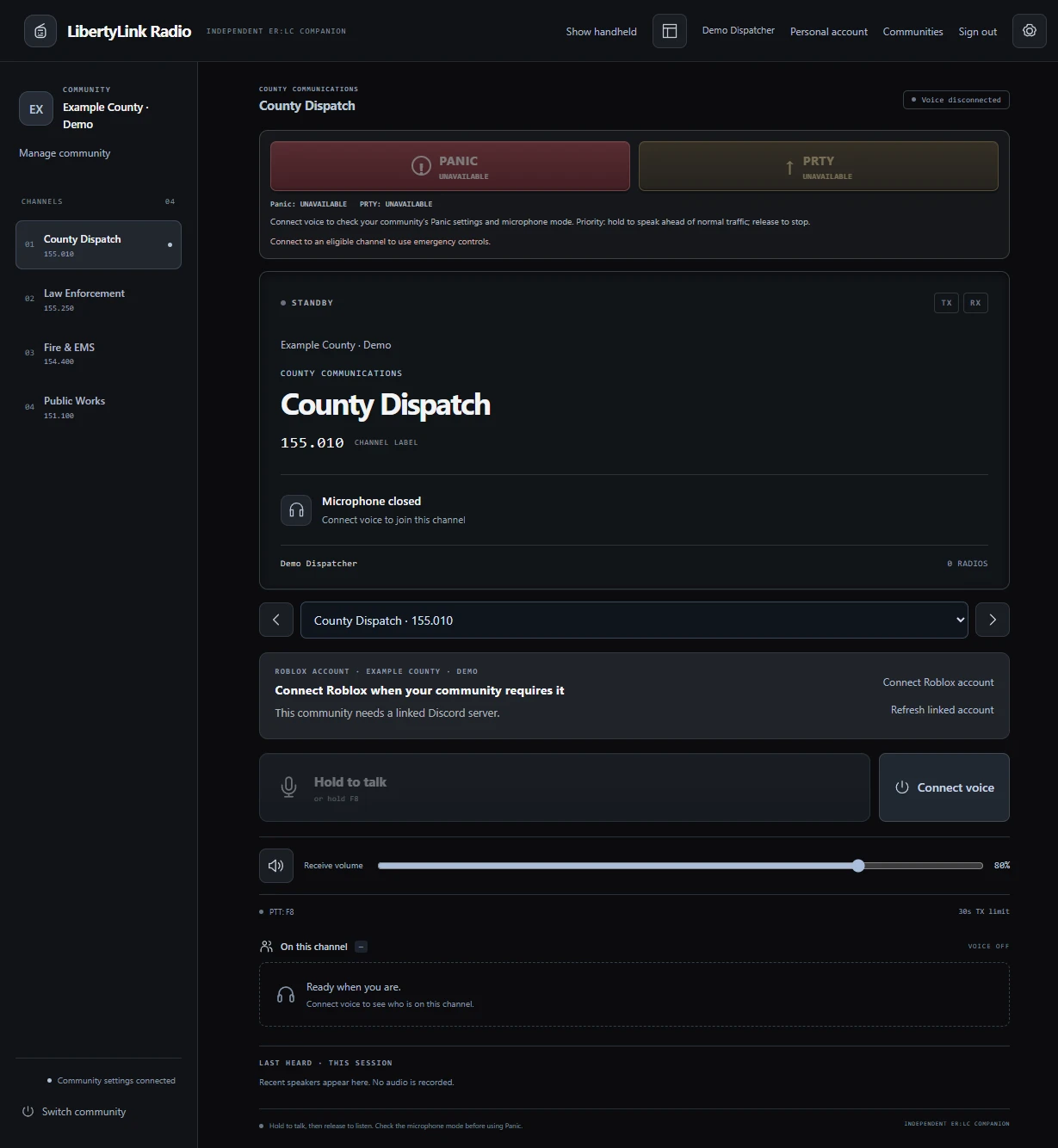
Pick a channel, set your callsign and hold push-to-talk to speak. See who is talking and adjust the radio to suit your setup.
Hold your chosen Windows key or the on-screen button to speak. Release to stop.
Check your channel, callsigns and speaking indicators. Adjust listening volume or mute incoming audio.
Open mode allows people to speak together. Optional Radio mode gives one person the floor; a busy cue tells you when to try again.
Use the full radio for setup, compact view to save space, or the handheld while you play.
THE HANDHELD
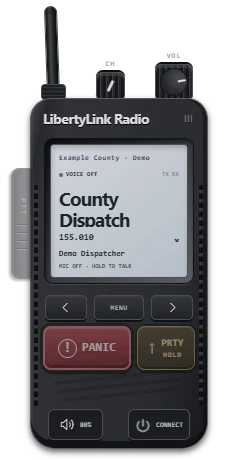
Keep a small radio on screen while you play. Change channels, adjust the volume and see who’s talking. On Windows, this desktop companion window can appear automatically when Roblox starts.
FOR COMMUNITY OWNERS
Organise channels, invite members and choose your radio’s appearance and sound in the web dashboard. Your members use the desktop app to talk.
Create your community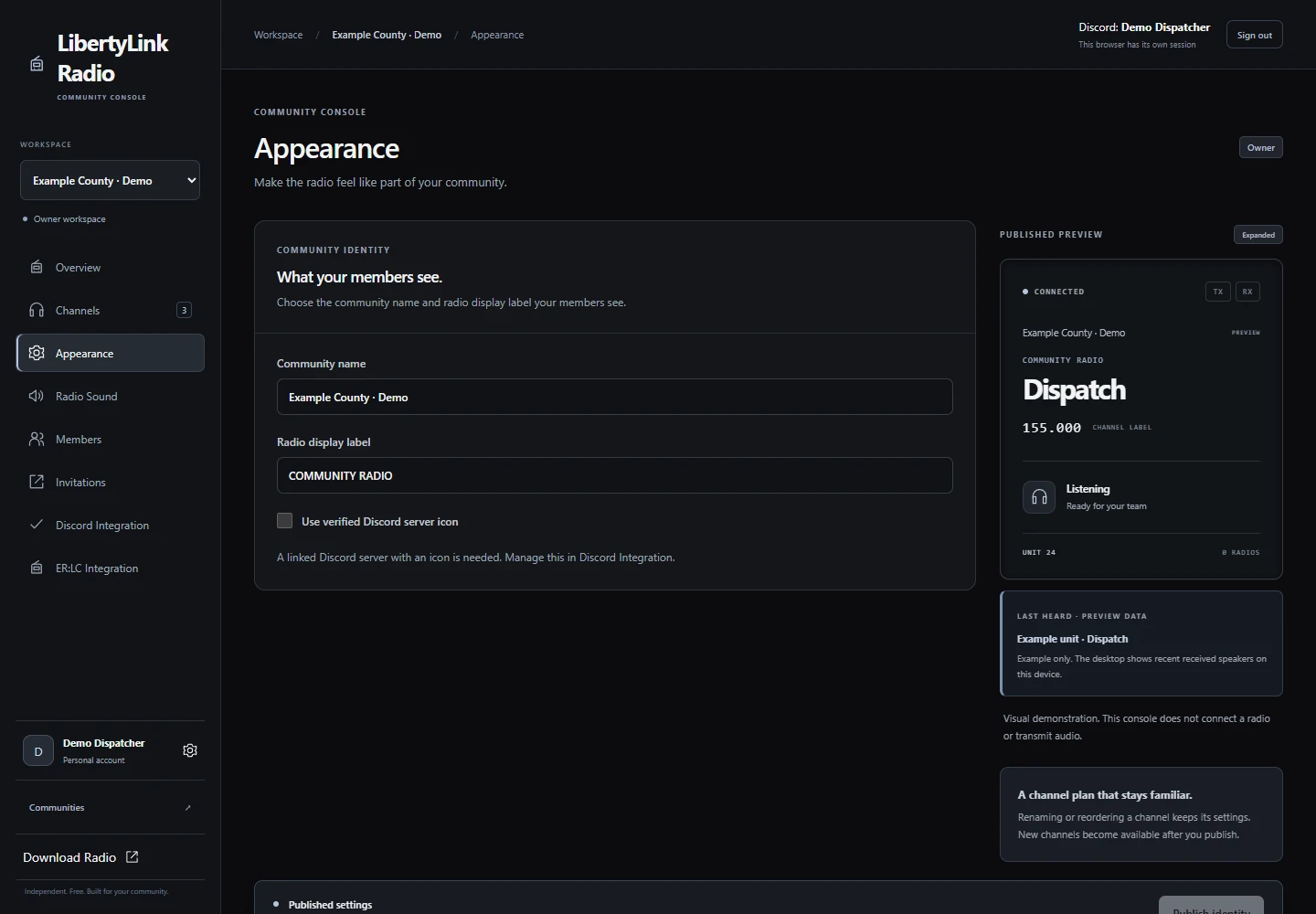
Name and order channels, choose display frequencies and set speaking limits.
Create invitations with expiry and usage limits. Assign administrators and manage radio access.
Set the radio’s finish, display and voice effects. Members keep their own device, volume and callsign settings.
ACCESS & DEPARTMENTS
Communities can restrict radio channels by ER:LC team and Discord role. Link Roblox when your community requires it, then join an allowed team in its ER:LC server. Your Radio membership and the channel’s access rules still apply.
Understand channel access and Roblox linkingRADIO SOUND
Choose a radio sound for your community. Members can adjust their own listening volume and sound effects.
Natural voice without added radio effects.
A crisp, clear digital radio sound.
A warmer, old-style radio sound.
COMMUNITY CONTROLS
Two optional controls help eligible members speak over ordinary traffic. Your community decides where they are available.
Panic requests an exclusive speaking window, lasting 10 seconds by default. Depending on community settings, it can open your microphone automatically or require you to hold push-to-talk.
Use Stop to end your active Panic.
Hold Priority to speak over ordinary traffic; release to stop. It cannot interrupt an active Panic.
Administrators choose the duration and cooldowns for both controls. Normal channel access still applies.
Radio is a game companion, not an emergency communications service. Read the eligibility, controls and microphone behaviour ↗
DISCORD INTEGRATION
Give members useful radio information in your community’s Discord server. Choose the features you want to enable.
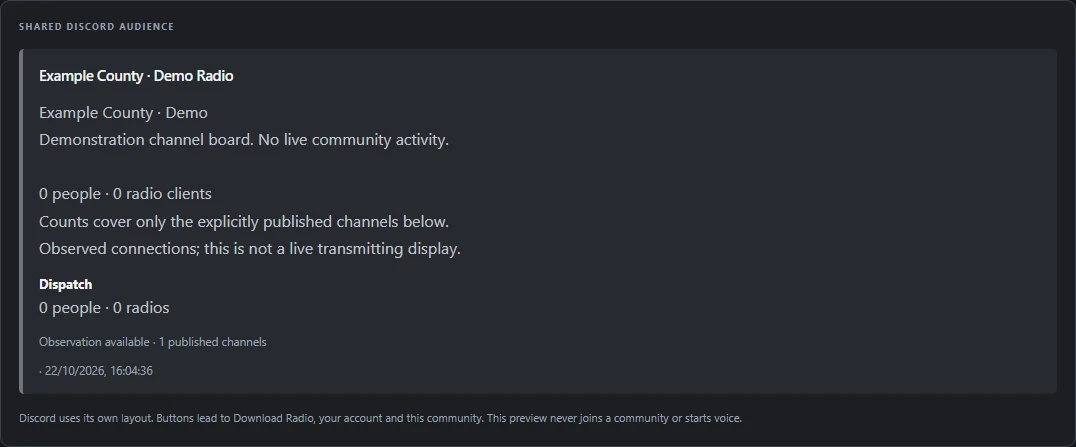
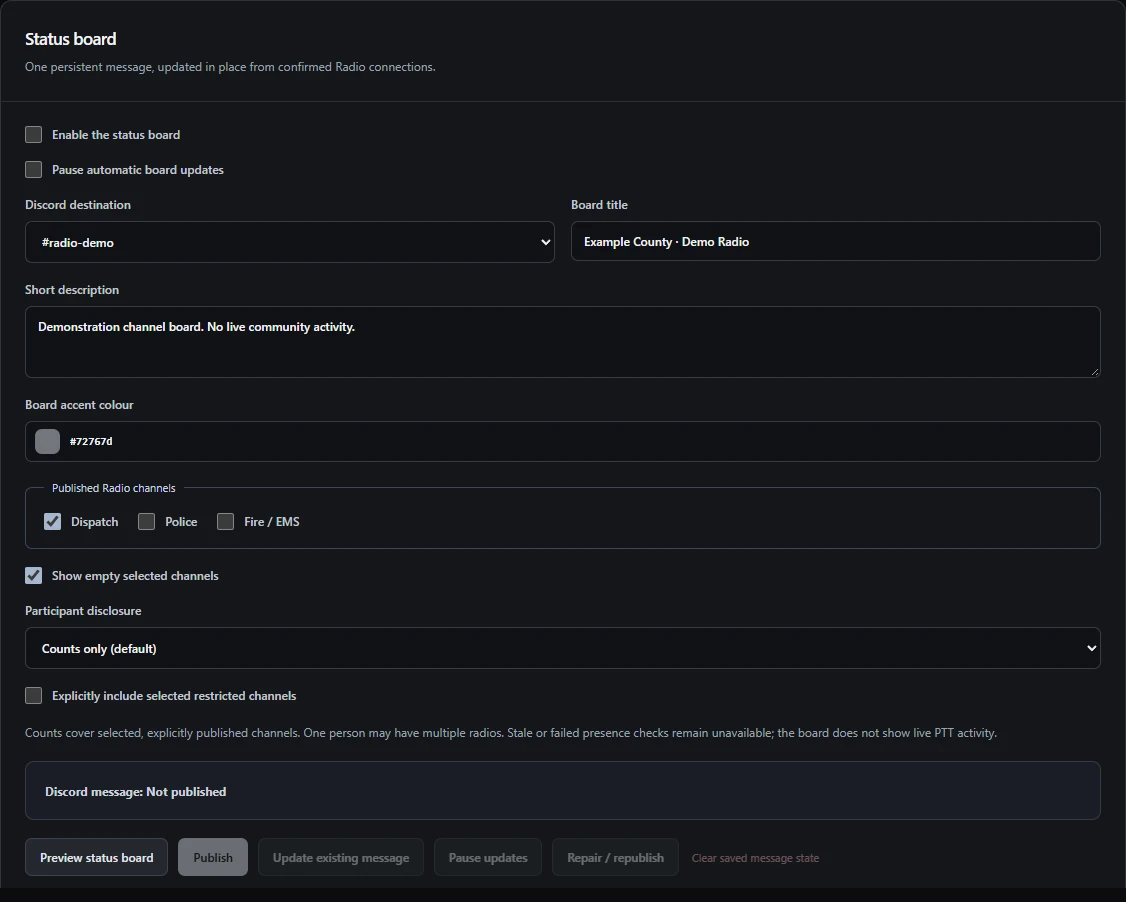
PLAYERS & COMMUNITY OWNERS
A community is the group of radio channels set up for an ER:LC server. Join yours as a player, or create one for your server.
Install the Windows app and use your own Discord account.
Accept the invitation on the website. Joining its Discord server alone does not grant Radio membership.
Use Personal account on the website to connect your Roblox account.
Select your microphone, connect, then hold the key or on-screen control to speak. Release to stop.
Open community setup in the web dashboard.
Approve the server check, then add the Radio bot and verify its installation.
Choose your channels, appearance and sound. Connect your ER:LC server where team access is needed.
Create Radio invitations in the dashboard and share them with your community.
Yes. It is free to download and use. Each person signs in with their own Discord account.
Windows 10 or newer on an x64 PC, an internet connection, a microphone, audio output and your own Discord account. You also need membership in a Radio community.
No. LibertyLink Radio is an independent companion. It is not an official Roblox, ER:LC or Discord product.
Radio runs as a separate desktop application. The handheld is a desktop window alongside your game. See the handheld guide for display and fullscreen behaviour.
Ask its owner or administrator for a Radio invitation. Accept it on the website using the same Discord account you use in the app. See the joining guide if your community does not appear or your invitation has expired.
Yes. You need a Discord server you own or can manage. Create your community to choose the server, add the Radio bot and set up your channels.
Discord is how you sign in to Radio. Use the same Discord account on the website and desktop so you can access your communities in both.
When your community requires a verified Roblox account or ER:LC team access. Start in Personal account on the website. The channel-access guide explains the requirements.
Check the reason shown in the app, then read the channel-access guide. Your community’s staff can help with invitations, department access, missing Discord roles and moderation restrictions.
Choose your microphone and push-to-talk (PTT) key in Settings, then connect to a channel. Hold the key or on-screen control to speak and release to stop. See the radio controls guide for more.
Open mode allows simultaneous speech. In single-speaker Radio mode, wait for the channel to clear, then release and press again. Panic and Priority have their own rules when enabled.
The Windows x64 installer is available for Windows 10 or newer. Mac is coming soon and is not available for public use yet. There is no packaged Linux or mobile client.
The Windows app downloads available updates and lets you choose when to restart. A connected restart asks for confirmation and leaves voice first. See updating Radio for details.
The Radio service does not record voice. See the privacy policy for the information used to run the service.
Read the help guide or join the LibertyLink Discord for setup help, updates and feedback. Contact your community’s staff about invitations, department access, missing Discord roles or moderation restrictions.
START USING RADIO
Download the Windows app or set up your server’s radio channels.